








How to Connect Beats Headphones in 2025 | Step-by-Step Guide – Devixo Store

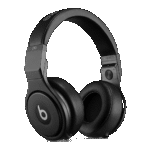
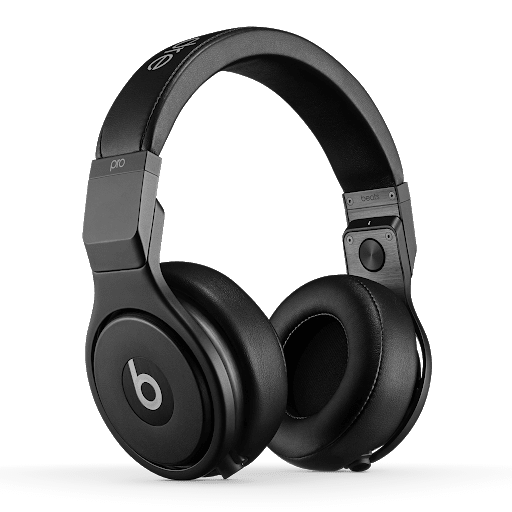
Beats headphones remain one of the most popular choices for music lovers, gamers, and professionals. Known for their powerful bass, stylish design, and seamless Bluetooth connectivity, Beats are compatible with a wide range of devices including iPhone, Samsung, Android, laptops, iPads, and even Chromebooks.
In this guide, we’ll walk you through how to connect Beats headphones step by step on every major device. Whether you own Beats Studio3, Beats Solo Pro, Beats Fit Pro, or Beats Flex, these steps will help you pair your headphones easily.
🔹 How to Connect Beats Headphones to iPhone
- Make sure your Beats headphones are charged.
- Hold the power button until the LED light flashes.
- On your iPhone, go to Settings > Bluetooth.
- Turn Bluetooth ON and select your Beats model from the list.
- Tap Connect.
Your Beats will now pair automatically with all devices linked to your Apple ID via iCloud.
connect Beats to iPhone, Beats Bluetooth iOS, Beats pairing guide.
🔹 How to Connect Beats Headphones to Samsung
- Turn on your Beats headphones and put them in pairing mode.
- On your Samsung device, open Settings > Connections > Bluetooth.
- Tap on your Beats headphones name.
- Accept pairing confirmation.
Beats work perfectly with Samsung Galaxy smartphones running Android.
Beats with Samsung, connect Beats to Galaxy, Beats Android setup.
🔹 How to Connect Beats Headphones to Android
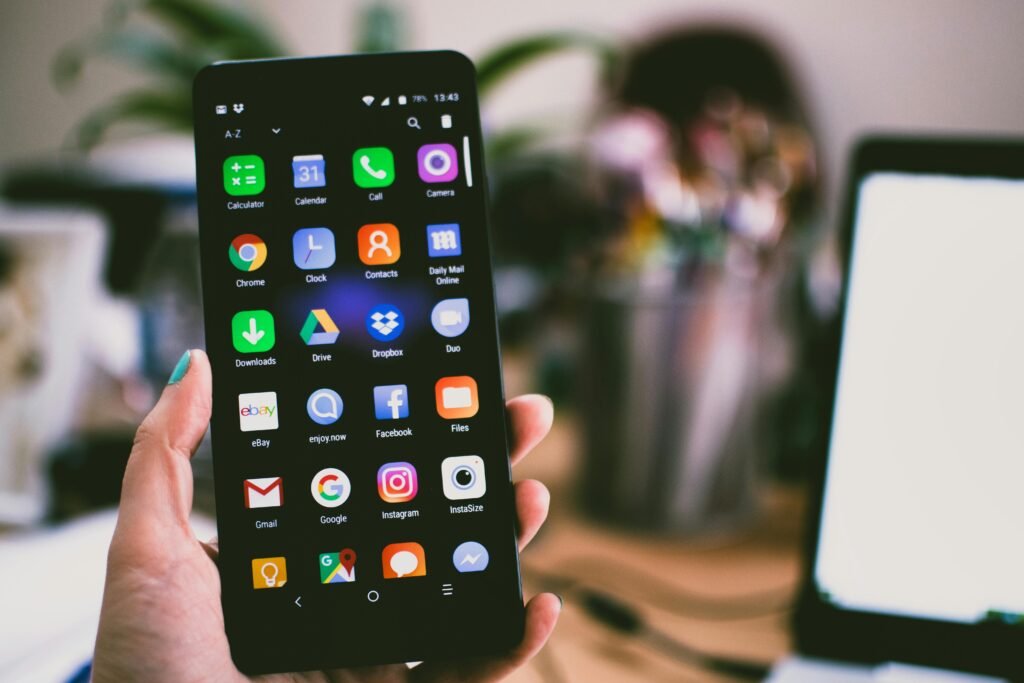
- Open Settings > Bluetooth on your Android device.
- Put your Beats into pairing mode.
- Tap your Beats device name when it appears.
- Confirm connection.
Works with all Android devices (Google Pixel, OnePlus, Xiaomi, Oppo, etc.).
🔹 How to Connect Beats Headphones to Laptop (Windows)
- On your laptop, go to Start > Settings > Devices > Bluetooth & other devices.
- Click Add Bluetooth or other device.
- Select Bluetooth and choose your Beats headphones.
- Confirm pairing.
Great for Zoom calls, Microsoft Teams, and gaming.
🔹 How to Connect Beats Headphones to iPad
Steps are the same as iPhone:
- Open Settings > Bluetooth.
- Select your Beats headphones.
- Tap Connect.
Your Beats will sync with all Apple devices instantly.
🔹 How to Connect Beats Headphones to Chromebook
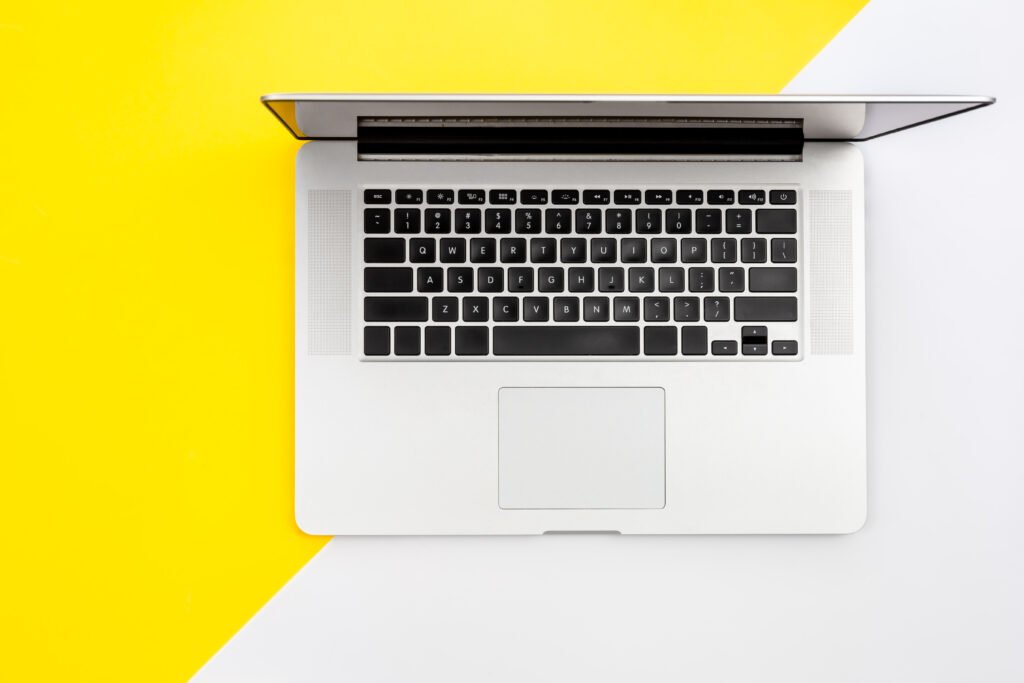
- Open Quick Settings (bottom right corner).
- Turn on Bluetooth.
- Select Pair new device.
- Choose your Beats headphones from the list.
- Confirm pairing.
Now you can enjoy music, online classes, or meetings on your Chromebook.
🔥 Why Choose Beats Headphones?

- Premium sound quality with deep bass.
- Bluetooth multipoint for easy switching between devices.
- Comfortable fit for workouts, calls, or long listening sessions.
- Compatible with iOS, Android, Windows, and macOS.
🛒 Discover Affordable Headphones at Devixo.store
Looking for the best alternatives to Beats at affordable prices?
At Devixo.store, we offer high-quality headphones and headsets with premium features at unbeatable prices.
👉 Check out our top picks:
- Bose QuietComfort Ultra Wireless Bluetooth Headset
- Beyerdynamic DT 900 Pro X Professional Over-Ear Hi-Fi
- Fifine H13 Gaming Headphones RGB Detachable Mic
- Mchose X9 Wireless Gaming Headphones 7.1 Surround
- OneOdio A10 Bluetooth 5.4 Headphones Hybrid ANC
- Redragon H858 3-Mode Wireless Gaming Headset
✨ Whether you need wireless, wired, gaming, or studio headphones, we have the best deals waiting for you.
✅ Final Thoughts
Connecting Beats headphones to your device is quick and easy, whether you’re using an iPhone, Samsung, Android, laptop, iPad, or Chromebook. Once paired, you’ll enjoy the signature Beats sound, comfort, and seamless Bluetooth performance.
If you’re looking for affordable premium headphones, don’t forget to explore Devixo Store for the latest deals.

No comment