







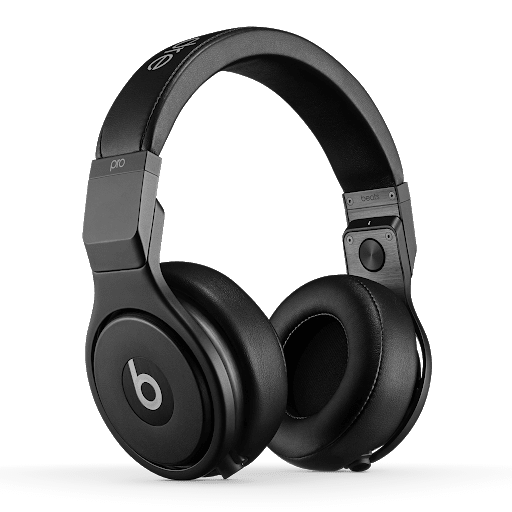




🎧 Which Is the Best Sound Equalizer? (2026 Complete Guide)
Finding your perfect audio balance transforms how you experience music and movies. Whether you are a casual listener or a pro engineer, mastering frequency control remains a vital skill. This audio equalization guide helps you navigate modern software to unlock hidden details in your favorite tracks.
Proper tuning acts as a cornerstone for high-fidelity playback. By adjusting specific bands, you can fix hardware limitations and tailor output to your unique ears. We will explore how to shape your output for a truly immersive experience.

Our mission involves providing a clear roadmap for your digital journey. You will learn to identify tools that match your hardware and personal preferences. Prepare to dive into practical techniques that elevate your listening sessions to professional levels.
Key Takeaways
- Understand why frequency adjustment improves overall audio clarity.
- Learn to select software tailored to your specific hardware setup.
- Discover how to balance bass, mids, and treble for a custom profile.
- Gain confidence in using professional-grade shaping tools.
- Master the basics of high-fidelity output for any listening environment.
Understanding the Fundamentals of Audio Equalization
Audio equalization is more than just moving sliders; it is the art of shaping sound to your specific preferences. By manipulating different parts of the audio spectrum, you can transform a flat, dull sound into a rich and immersive experience. This process allows you to highlight the details you love while softening the elements that might feel overwhelming.
At its core, frequency range adjustment involves balancing the levels of various sound bands. These range from deep, rumbling sub-bass frequencies to the crisp, delicate highs of the treble. When you adjust these bands, you are essentially customizing the sound signature of your headphones or speakers to match your unique taste.
How Frequency Ranges Affect Your Listening Experience
Every sound you hear occupies a specific place in the frequency spectrum. Low frequencies provide the physical impact of a bass drum, while mid-range frequencies carry the warmth of human vocals. High frequencies add clarity and sparkle to instruments like cymbals or violins.
If your audio feels muddy, you might need to reduce the lower-mid frequencies. Conversely, if your music lacks energy, a slight boost in the treble can make it feel more alive. Mastering these adjustments is the key to unlocking the true potential of your audio hardware.
The Difference Between Graphic and Parametric Equalizers
When choosing your tools, you will often encounter a debate regarding graphic vs parametric EQ. A graphic equalizer is typically the most user-friendly option for beginners. It uses a series of fixed sliders that represent specific frequency bands, allowing for quick and intuitive changes.
In contrast, a parametric equalizer offers professional-grade precision. It allows you to select a specific frequency, adjust the gain, and even control the bandwidth, which determines how wide or narrow the adjustment is. While it has a steeper learning curve, it provides the ultimate control for those who want to fine-tune their sound with surgical accuracy.
Determining Your Audio Needs and Hardware Compatibility
Building a great sound profile starts long before you open an equalizer app. Many users rush into downloading software without considering how their current gear handles audio signals. Taking a moment to audit your equipment will save you hours of frustration and ensure your audio sounds exactly how you want it.
Identifying Your Primary Audio Source
Your listening habits dictate the type of equalizer you should choose. If you primarily stream music from platforms like Spotify or Apple Music, you need software that integrates smoothly with web browsers or desktop apps. Local high-resolution files, however, often require more robust tools that can handle bit-perfect playback without adding unwanted noise.
Gamers face a different set of challenges when identifying their primary source. Console users often rely on external hardware, while PC gamers might need software that interacts directly with their sound card drivers. Knowing where your audio originates is the first step toward achieving a seamless and high-quality signal path.
Matching Equalizer Capabilities with Your Headphones or Speakers
Not every equalizer is built to handle every piece of hardware. You must ensure that your chosen software can effectively communicate with your specific DAC or sound card. If you use high-end studio headphones, you need an equalizer that offers precise control over narrow frequency bands to avoid distortion.
The following table helps you match your equipment type with the right level of software complexity:
| Hardware Type | EQ Complexity | Primary Benefit |
|---|---|---|
| Standard Earbuds | Basic | Ease of use |
| Gaming Headsets | Intermediate | Spatial awareness |
| Studio Monitors | Advanced | Frequency accuracy |
| External DACs | Professional | Signal transparency |
Always verify that your hardware supports the sample rates your equalizer uses. Mismatching these settings can lead to audio stuttering or a loss of clarity. By aligning your software choices with your physical equipment, you create a stable foundation for all your future audio adjustments.
Selecting the Best Sound Equalizer for Windows 11
Finding the right Windows 11 audio software can transform your listening experience. Whether you are a power user or someone who just wants clearer dialogue, the operating system provides a robust foundation for audio customization. Choosing the correct tool depends on your technical comfort level and your specific sound goals.
Evaluating Equalizer APO and Peace Interface
Equalizer APO is widely regarded as the gold standard for system-wide audio processing. It operates as a powerful engine that works directly with your audio drivers to provide unmatched precision. Because it lacks a graphical user interface on its own, most users pair it with the Peace Interface.
The Peace Interface adds a user-friendly layer that makes complex adjustments accessible to everyone. You can easily manage multiple frequency bands, save custom presets, and apply filters without needing a degree in sound engineering. This combination is the ultimate choice for those who want total control over their audio output.
Exploring FxSound for Casual Users
If you prefer a “set it and forget it” approach, FxSound is an excellent alternative. This Windows 11 audio software is designed for casual listeners who want to improve their sound quality without diving into deep technical settings. It offers a streamlined experience that instantly boosts clarity and volume.
FxSound provides a variety of pre-configured profiles tailored for music, movies, and gaming. You do not need to understand complex frequency curves to see a noticeable improvement in your audio fidelity. It is the perfect solution for users who want professional-grade sound enhancement with minimal effort.
Optimizing Audio on macOS Systems
If you are looking to elevate your listening experience, macOS sound enhancement is the key to unlocking your hardware’s full potential. While Apple provides a clean interface, the system architecture often limits deep audio customization. Fortunately, dedicated software can bridge this gap, allowing you to tailor every frequency to your personal taste.
Using SoundSource for System-Wide Control
SoundSource stands out as a premier tool for users who demand granular control over their audio environment. It allows you to apply equalization to individual applications, meaning you can boost the bass in your music player without affecting your video conferencing software. This level of precision ensures that your audio is always optimized for the specific task at hand.
Beyond simple equalization, the software provides system-wide volume control and effects. You can easily route audio from different sources to various output devices with just a few clicks. It is an essential utility for anyone who wants to take full command of their Mac’s sound output.
Configuring Boom 3D for Enhanced Spatial Audio
For those who crave a more cinematic feel, Boom 3D offers an impressive suite of spatial audio features. This application uses advanced algorithms to create a virtual surround sound experience, even when you are using standard stereo headphones. It effectively widens the soundstage, making your media feel more immersive and lifelike.
Configuring the software is straightforward, as it includes several presets designed for different genres of music and movies. You can also manually adjust the 3D surround settings to match your specific hardware setup. It is a fantastic way to add depth to your audio without needing expensive external equipment.
| Feature | SoundSource | Boom 3D |
|---|---|---|
| Primary Focus | System-wide Control | Spatial Audio |
| Per-App EQ | Yes | No |
| Virtual Surround | Limited | Advanced |
| Best For | Power Users | Media Enthusiasts |
Mobile Audio Enhancement for Android and iOS
Mobile audio consumption has become the standard, yet many users settle for flat, uninspired sound profiles. While your smartphone is a powerful tool, it often requires a bit of fine-tuning to unlock its true potential. By utilizing the right mobile audio apps, you can transform your daily commute into a high-fidelity experience.
Leveraging Built-in System Equalizers
Most modern Android devices offer a basic equalizer within the sound settings menu. These tools allow you to adjust specific frequency bands to better suit your headphones or personal taste. However, these built-in options are often limited in scope and may not provide the precision needed for a truly balanced sound.
On the other hand, iOS devices take a more restrictive approach with their integrated EQ presets. While Apple provides several useful profiles designed for specific genres, they do not allow for manual, granular control over individual frequencies. If you want to achieve a customized sound signature, you will likely need to look beyond the default system settings.
Top Third-Party Apps for Mobile Audiophiles
For those who demand more, third-party mobile audio apps offer a significant upgrade in functionality. Applications like Wavelet for Android provide advanced features such as auto-EQ, which automatically adjusts your output to match the specific frequency response of your headphones. This ensures that your music sounds exactly as the artist intended, regardless of your hardware.
iOS users can also find powerful solutions that integrate with their music libraries to provide parametric equalization. These tools allow you to manipulate sound with surgical precision, giving you full control over bass, mids, and treble. By investing time in these mobile audio apps, you can maintain high-fidelity quality even when listening through portable wireless headphones.
Setting Up Your Equalizer for Gaming
Mastering your gaming audio settings can be the difference between victory and defeat in fast-paced titles. Unlike music listening, which prioritizes warmth and depth, gaming requires a sharp focus on spatial awareness and clarity. By adjusting your equalizer, you can isolate critical sound cues that might otherwise get lost in the chaos of battle.
Boosting Footstep Frequencies for Competitive Advantage
In competitive shooters, the ability to pinpoint an enemy’s location is vital. Most footsteps reside in the upper-mid frequency range, typically between 2kHz and 4kHz. You can gain a significant advantage by slightly boosting these bands to make movement sounds stand out against ambient noise.
Be careful not to over-boost these frequencies, as it can lead to ear fatigue during long sessions. A subtle increase of 3dB to 5dB is usually enough to improve your reaction time without distorting the overall soundstage. Always test these changes in a controlled environment to ensure you can still distinguish between different surface types, such as wood or metal.
Balancing Explosions and Dialogue in Cinematic Games
Cinematic games often feature massive dynamic ranges that can make dialogue difficult to hear during intense action sequences. To fix this, you should apply a slight dip in the low-end frequencies, specifically around 100Hz to 250Hz. This reduces the “muddy” rumble of explosions, allowing the clearer mid-range frequencies of character voices to cut through the mix.
You may also want to apply a gentle boost to the 1kHz to 2kHz range to enhance vocal presence. This ensures that important narrative cues remain audible even when the screen is filled with visual effects. The following table provides a quick reference for common gaming audio settings across different genres.
| Game Genre | Primary Focus | EQ Adjustment |
|---|---|---|
| Competitive FPS | Footsteps & Reloads | Boost 2kHz – 4kHz |
| Cinematic RPG | Dialogue & Atmosphere | Cut 100Hz, Boost 1kHz |
| Racing Simulators | Engine & Road Noise | Boost 200Hz – 500Hz |
| Horror Games | Ambient & Low Drones | Boost 60Hz – 150Hz |
Fine-Tuning Equalizer Settings for Music Production
Whether you are mixing a demo or mastering a final track, your equalizer is your most powerful creative tool. For aspiring producers, music production EQ serves as the backbone of a clean, professional signal chain. Understanding how to manipulate frequencies allows you to transform a raw recording into a polished masterpiece.
Corrective EQ Techniques for Mixing
The first step in any professional mix is corrective equalization. This process involves identifying and removing unwanted frequencies that clutter your soundstage. You should look for muddy low-end buildup or harsh resonant peaks that distract the listener.
Using a high-pass filter is a standard way to clear space for your kick drum and bass. By cutting frequencies below 100Hz on non-bass instruments, you prevent the mix from sounding cluttered. Precision is key when applying these cuts to ensure you do not lose the natural character of the performance.
Creative EQ Applications for Mastering
Once your mix is clean, you can use music production EQ to add character and balance. Creative equalization is about carving out specific pockets in the frequency spectrum for each instrument. This ensures that every element has its own space to shine without fighting for dominance.
During the mastering stage, subtle adjustments can make a track translate well across all playback systems. A gentle boost in the high-mids can add clarity, while a slight dip in the boxy frequencies can improve overall warmth. Mastering this balance is essential for achieving a professional, radio-ready sound.
| EQ Technique | Primary Goal | Frequency Range |
|---|---|---|
| High-Pass Filter | Remove Mud | 20Hz – 150Hz |
| Notch Filter | Fix Resonance | Variable |
| High Shelf | Add Air/Clarity | 8kHz – 20kHz |
| Mid-Range Cut | Create Space | 400Hz – 1kHz |
Which Is the Best Sound Equalizer? (2026 Complete Guide) for Audiophiles
For those who demand absolute sonic purity, selecting the right equalizer is a critical step. Achieving audiophile sound quality requires software that respects the original recording without adding unwanted artifacts or noise. When you prioritize transparency, you ensure that your music remains as the artist intended.

High-Fidelity Software Solutions
The best sound equalizer for a discerning listener must offer bit-perfect processing. Many standard tools alter the signal path in ways that degrade clarity, but high-fidelity options focus on minimal phase distortion. These applications allow for surgical adjustments that preserve the delicate nuances of your favorite tracks.
Advanced software often includes features like 64-bit internal processing to prevent rounding errors. By utilizing these tools, you can shape your frequency response while maintaining a clean, transparent output. This level of control is essential for those who refuse to compromise on their listening experience.
Integrating Hardware DACs with Software EQ
Software is only one part of the equation when building a high-end audio chain. Integrating an external hardware DAC with your software equalizer creates a robust system that maximizes audiophile sound quality. The DAC handles the digital-to-analog conversion, while the software manages the frequency shaping before the signal reaches your amplifier.
This combination allows you to offload processing tasks while keeping the signal path pristine. It is important to ensure that your software settings do not introduce clipping before the signal hits your high-quality hardware. When configured correctly, this setup provides a professional-grade listening environment at home.
| Software Feature | Bit-Perfect Output | Phase Accuracy | Hardware Support |
|---|---|---|---|
| Pro-Grade EQ | Yes | High | Excellent |
| Standard EQ | No | Moderate | Limited |
| Plugin Suite | Yes | Very High | Universal |
Step-by-Step Guide to Calibrating Your Sound Profile
Proper sound calibration is the secret weapon for any listener seeking a truly neutral and accurate audio experience. By aligning your output with a reference standard, you remove the coloration introduced by your room or hardware. This process ensures that you hear your music exactly as the artist intended.
Performing a Frequency Sweep Test
To begin, you need to identify how your current setup handles different tones. A frequency sweep test plays a continuous tone that moves from low bass to high treble. You should listen carefully for any areas where the volume suddenly spikes or drops off significantly.
These inconsistencies are often caused by your room’s physical dimensions or speaker placement. Take notes on which frequencies sound too loud or too quiet during the test. This data serves as the foundation for your upcoming adjustments.
Adjusting Bands to Flatten Your Response Curve
Once you have identified the problem areas, it is time to perform a frequency range adjustment. Open your equalizer software and target the specific bands that showed issues during your sweep test. If a frequency is too loud, gently lower the gain for that band to bring it back into balance.
If a frequency is too quiet, try a subtle boost, but be careful not to overdo it. The goal is to create a flat response curve where no single frequency dominates the mix. Consistent sound calibration requires patience, so make small changes and listen to familiar tracks to verify the improvements.
Common Mistakes to Avoid When Using Equalizers
Even high-end audio gear can sound terrible if you make common mistakes during the tuning process. Many listeners assume that pushing every slider to the top will result in a louder, more powerful sound. In reality, this approach often leads to unwanted artifacts and significant signal degradation.
The Dangers of Excessive Gain and Clipping
When you increase the gain on specific frequency bands, you are essentially asking your software to amplify the signal beyond its digital ceiling. This process frequently triggers digital clipping, which manifests as a harsh, crackling sound. Once the signal clips, the original waveform is flattened, stripping away the natural dynamics of your music.
To maintain high-quality audio, consider these best practices:
- Always use negative gain (cut) instead of boosting whenever possible.
- Monitor your output levels to ensure they never hit the red zone.
- Use a limiter if you find that your adjustments are causing sudden volume spikes.
Why Over-Boosting Frequencies Causes Distortion
Over-boosting specific frequencies is a primary cause of equalizer distortion that ruins the clarity of your favorite tracks. When you force a narrow band to work too hard, it creates phase issues that make the sound feel muddy or hollow. This unnatural shift in the audio spectrum can mask important details, such as vocals or subtle instrument textures.
By avoiding these common errors, you ensure that your audio remains clean, punchy, and enjoyable at all volume levels. Remember that subtlety is key when adjusting your sound profile. A small, precise change is almost always better than a drastic, aggressive boost that introduces unwanted noise into your listening experience.
Advanced Equalization Techniques for Professional Results
Advanced equalization is the secret weapon that separates amateur mixes from professional-grade audio. While basic sliders are helpful for quick adjustments, true mastery involves understanding how to manipulate specific frequency bands with precision. By learning these professional methods, you can transform your listening experience and achieve a balanced, high-fidelity sound profile.
Understanding Q-Factor and Bandwidth
The Q-factor, or quality factor, determines the width of the frequency range affected by a specific adjustment. When you modify your Q-factor settings, you decide whether to target a tiny slice of the audio spectrum or a broad, sweeping range of frequencies.
A narrow Q-factor is perfect for surgical precision, allowing you to isolate and remove harsh, problematic frequencies without affecting the surrounding audio. Conversely, a wider Q-factor provides a more natural, musical boost or cut that sounds smooth to the human ear. Mastering these adjustments is essential for anyone looking to refine their sound to an expert level.
Utilizing Shelving Filters for Bass and Treble
Shelving filters act differently than standard bell-shaped curves by affecting all frequencies above or below a certain point. These filters are incredibly useful for subtly shaping the overall tone of your audio without creating unnatural peaks or dips. You can use a low-shelf filter to gently lift the bass or a high-shelf filter to add clarity to the treble range.
By applying these filters, you maintain the integrity of your audio while achieving a more polished output. The following table highlights the primary differences between common filter types used in professional audio environments.
| Filter Type | Primary Function | Best Use Case |
|---|---|---|
| Bell Filter | Targets specific frequencies | Removing resonance or harshness |
| Low-Shelf | Adjusts all low frequencies | Adding warmth or weight to bass |
| High-Shelf | Adjusts all high frequencies | Enhancing brightness and detail |
| Band-Pass | Limits frequency range | Isolating specific audio elements |
Managing Equalizer Presets Across Multiple Devices
Managing your sound profiles across multiple platforms ensures your music always sounds exactly how you like it. In a world where we constantly switch between desktop workstations, laptops, and mobile phones, maintaining a consistent audio signature can feel like a chore. Fortunately, modern software makes it simple to carry your custom settings with you wherever you go.

Exporting and Importing Configuration Files
Most professional-grade equalizer software allows you to save your hard work as a configuration file. These files, often saved in formats like .json, .xml, or proprietary formats, act as a digital blueprint for your audio preferences. By exporting these files, you create a portable backup that you can easily move between different machines.
To keep your audio consistent, follow these simple steps for file management:
- Export your profile: Locate the “Save” or “Export” function within your equalizer’s settings menu.
- Store in the cloud: Save your configuration files to a service like Google Drive, Dropbox, or iCloud for instant access.
- Import on new devices: Simply open your equalizer software on the new device and select the “Import” or “Load” option to apply your saved settings.
Syncing Audio Profiles Between Desktop and Mobile
Syncing your audio profiles between a desktop and a mobile device often requires a bit more strategy. While some advanced apps offer built-in cloud synchronization, others may require manual file transfers. Using a cloud-based storage folder is the most efficient way to ensure your settings are always available on your phone and computer.
If your software does not support automatic syncing, you can manually move your files using a USB cable or a shared network drive. Once the file is on your mobile device, use the “Import” feature in your mobile audio app to load the profile. This seamless transition allows you to enjoy a familiar sound signature regardless of the hardware you are using.
“Consistency in your audio chain is the hallmark of a true audiophile. When your EQ settings follow you, your listening experience remains pure and predictable.”
Troubleshooting Common Equalizer Issues
If your audio experience feels less than perfect after installing an equalizer, you are not alone. While these tools are designed to enhance your sound, they occasionally interact poorly with existing system drivers. Most of these technical hiccups are easy to resolve with a few simple adjustments to your configuration.
Resolving Driver Conflicts and Audio Latency
Audio latency often occurs when your system struggles to process the additional data load from an equalizer. This delay can make dialogue feel out of sync or cause a noticeable lag in gaming. To fix this, ensure your primary audio drivers are fully updated through your manufacturer’s website.
You should also check for software conflicts by disabling other audio enhancement tools that might be running in the background. If the problem persists, try reinstalling the equalizer software to ensure a clean integration with your operating system. Keeping your system drivers current is the most effective way to maintain stable audio performance.
Fixing Sound Stuttering After EQ Installation
Sound stuttering or audio dropouts are usually signs that your system’s buffer size is set too low. When the processor cannot keep up with the audio stream, the sound breaks up or skips. Adjusting the buffer settings within your equalizer’s control panel can often eliminate these interruptions entirely.
Follow these steps to restore your audio quality:
- Increase the buffer size in your equalizer settings to reduce the strain on your CPU.
- Disable any unnecessary background applications that consume high amounts of system memory.
- Check for conflicting audio plugins or virtual cables that might be competing for the same output channel.
- Restart your audio service or perform a full system reboot to clear temporary cache files.
By following these diagnostic steps, you can quickly restore your audio system to peak performance. Most users find that a simple adjustment to the buffer or a quick driver update solves the vast majority of playback issues. If you continue to experience problems, verify that your hardware is fully compatible with the specific version of the software you are running.
The Role of Room Correction in Equalization
Your listening space acts as an instrument that colors every note you hear. While you might focus on software settings, the physical boundaries of your room often dictate the final output. Implementing room correction is the most effective way to neutralize these unwanted acoustic artifacts.
How Physical Environment Impacts Sound
Every room has unique dimensions that create standing waves and reflections. These phenomena can cause certain bass frequencies to boom uncontrollably while making others disappear entirely. This creates a skewed frequency response that no standard equalizer can fix on its own.
“The room is the most important component in your audio chain, yet it is the one most often overlooked by casual listeners.”
— Anonymous Audio Engineer
When sound waves bounce off hard surfaces like walls or windows, they interfere with the direct sound from your speakers. This interference leads to phase cancellation and muddy audio quality. By understanding these interactions, you can begin to manage your environment more effectively.
Using Measurement Microphones for Accurate Calibration
To truly master your space, you need precise data. A dedicated measurement microphone captures the actual frequency response of your room, revealing exactly where the peaks and dips occur. This data is essential for applying the right room correction adjustments.
Once you have captured your room’s acoustic profile, you can feed this information into your software. The system then creates a custom filter to flatten the response curve, effectively smoothing out the harsh anomalies. Integrating this process with your existing equalizer settings ensures that your audio remains accurate, balanced, and tailored specifically to your unique listening environment.
Future Trends in AI-Driven Audio Equalization
Imagine a world where your headphones know exactly how you hear sound and adjust accordingly. The landscape of AI audio technology is shifting rapidly toward intelligent, automated systems that prioritize the listener’s unique physiology. These advancements promise to remove the guesswork from manual frequency adjustments.
Automated EQ Based on Personal Hearing Tests
Modern research into psychoacoustics allows software to map your specific hearing sensitivity. By conducting a quick, automated hearing test, your device can identify which frequencies you might struggle to perceive clearly. The software then applies a custom compensation curve to ensure you hear every detail of your music.
This level of personalization ensures that your audio profile is truly tailored to your ears. Instead of relying on generic presets, the system creates a unique signature that balances the output perfectly. It is a massive leap forward for accessibility and high-fidelity enjoyment.
Real-Time Adaptive Equalization Technology
Beyond static profiles, the next generation of AI audio technology focuses on dynamic, real-time adjustments. These systems analyze the audio content you are currently playing and the ambient noise in your environment. If you move from a quiet room to a busy street, the equalizer shifts its parameters to maintain clarity.
This adaptive intelligence ensures that dialogue remains crisp during movies while bass levels stay punchy in music. By constantly monitoring the output, the software prevents distortion and keeps the soundstage balanced. It effectively turns your playback device into a smart, self-correcting audio engineer.
| Feature | Traditional EQ | AI-Driven EQ |
|---|---|---|
| Adjustment Method | Manual sliders | Automated algorithms |
| Personalization | Generic presets | Hearing-test based |
| Environment Awareness | None | Real-time adaptation |
| Ease of Use | Requires expertise | Plug-and-play |
As AI audio technology continues to evolve, we can expect these features to become standard in consumer hardware. The future of sound is not just about louder volume, but about smarter, more responsive listening experiences.
Conclusion
Achieving the perfect audio balance transforms how you interact with your favorite media. This audio equalization guide serves as your roadmap to unlocking hidden details in every track and game. You now possess the knowledge to refine your output using tools like Equalizer APO or SoundSource.
Personalizing your listening environment requires patience and a willingness to experiment. Start by making small adjustments to your frequency bands while listening to familiar music. This audio equalization guide encourages you to trust your ears above all else during the calibration process.
Your journey toward high-fidelity sound does not stop here. Share your favorite custom presets with friends or explore new hardware to push your system further. We invite you to revisit these concepts as you upgrade your gear and refine your unique sonic signature.
FAQ
Why is using a sound equalizer essential for a high-fidelity audio experience in 2026?
An equalizer serves as the roadmap to your perfect sound signature. In the modern digital age, hardware like headphones and speakers often have inherent frequency biases. By using tools like Equalizer APO, you can correct these imbalances, ensuring that every track sounds exactly as the artist intended, regardless of your listening environment.
What is the technical difference between graphic and parametric equalizers?
Graphic equalizers utilize a set of fixed frequency bands with sliders to boost or cut levels, which is great for quick adjustments. In contrast, parametric equalizers, such as those found in the Peace Interface, offer much more precision by allowing you to control the specific frequency, gain, and bandwidth (Q-factor) for surgical audio shaping.
Which sound equalizer is recommended for casual Windows 11 users?
For those who prefer a “set it and forget it” approach, FxSound is an incredible choice for Windows 11. It provides an intuitive interface that instantly enhances audio quality for streaming and media consumption without requiring the deep technical knowledge needed for more complex parametric EQ setups.
How can I achieve system-wide audio control on a macOS system?
Due to the specific security protocols of macOS, achieving system-wide equalization can be tricky. However, SoundSource is a robust solution that allows you to apply effects and EQ to individual applications or your entire system output. If you are looking for spatial audio and virtual surround sound, Boom 3D is another top-tier option for Mac users.
Can I use an equalizer to get a competitive advantage in gaming?
Absolutely! By boosting specific high-frequency ranges, you can make subtle sounds like footsteps much more audible in competitive shooters. You can also create custom profiles to balance heavy explosions with clear dialogue in cinematic titles, ensuring you never miss a critical audio cue.
What are the dangers of excessive gain when adjusting my EQ settings?
One of the most common mistakes is over-boosting frequencies, which leads to digital clipping and harsh distortion. This significantly degrades the signal integrity and can even damage your equipment over time. It is always better to cut problematic frequencies rather than excessively boosting others to maintain proper headroom.
How does room correction software improve my listening experience?
Your physical room creates standing waves and acoustic reflections that can “muddy” your sound. Using room correction software alongside a measurement microphone allows you to identify these anomalies and flatten your response curve, resulting in a studio-quality sound tailored specifically to your unique space.
Is it possible to sync my custom audio profiles across multiple devices?
Yes, many modern software solutions allow you to export and import configuration files. By managing these files, you can ensure your custom equalizer presets remain consistent whether you are listening on your desktop, laptop, or moving to a mobile device like an Android or iPhone.
What role does AI play in the future of audio equalization?
The future of audio is leaning toward AI-driven automation. New technologies can now perform automated EQ based on individual hearing tests, compensating for frequencies you may not hear as well. Furthermore, real-time adaptive equalization can dynamically adjust your sound profile based on the specific content or the ambient noise in your environment.
How do I integrate an external hardware DAC with software equalization?
To maintain the highest audio fidelity, you should ensure your software EQ (like SoundSource or Equalizer APO) communicates effectively with your hardware DAC. This ensures a bit-perfect signal path that combines the precision of digital software with the superior digital-to-analog conversion of high-end external hardware.
- Kuwajia Auto Cut Charging Protector_Complete Guide review to Smart Battery Protection
- Best Portable Bluetooth Speakers Waterproof in 2026
- The Complete Guide to True Wireless Noise Cancelling Earbuds
- Best Wireless Gaming Headsets Reviews in 2026: Top Picks for Competitive Gaming, Comfort & Sound Quality
- 🎧 Best Wireless Gaming Headsets in 2026: Top Picks for Competitive Gaming, Comfort & Sound Quality


No comment